> ## Documentation Index
> Fetch the complete documentation index at: https://specterops-feat-poc-api-playground.mintlify.site/llms.txt
> Use this file to discover all available pages before exploring further.
# Create an AzureHound Configuration
 You will need your Tenant ID and Application ID from completing [AzureHound Enterprise Azure Configuration](/install-data-collector/install-azurehound/azure-configuration) prior to beginning this process.
1. Log into your BloodHound Enterprise tenant.
2. In the top right, click settings ⚙️ → **Download Collectors**
You will need your Tenant ID and Application ID from completing [AzureHound Enterprise Azure Configuration](/install-data-collector/install-azurehound/azure-configuration) prior to beginning this process.
1. Log into your BloodHound Enterprise tenant.
2. In the top right, click settings ⚙️ → **Download Collectors**
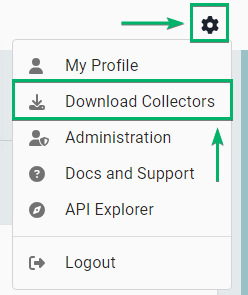 3. Download AzureHound Enterprise by clicking the button \*\*DOWNLOAD AZUREHOUND vX.X.X (.ZIP)
\*\*
3. Download AzureHound Enterprise by clicking the button \*\*DOWNLOAD AZUREHOUND vX.X.X (.ZIP)
\*\*
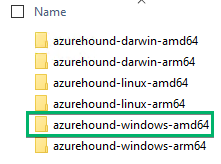
 4. Extract the contents of the zip archive and locate the binary suitable for your system's architecture.
* As an example, this guide will use the Windows 64-bit binary: "azurehound-windows-amd64"
4. Extract the contents of the zip archive and locate the binary suitable for your system's architecture.
* As an example, this guide will use the Windows 64-bit binary: "azurehound-windows-amd64"
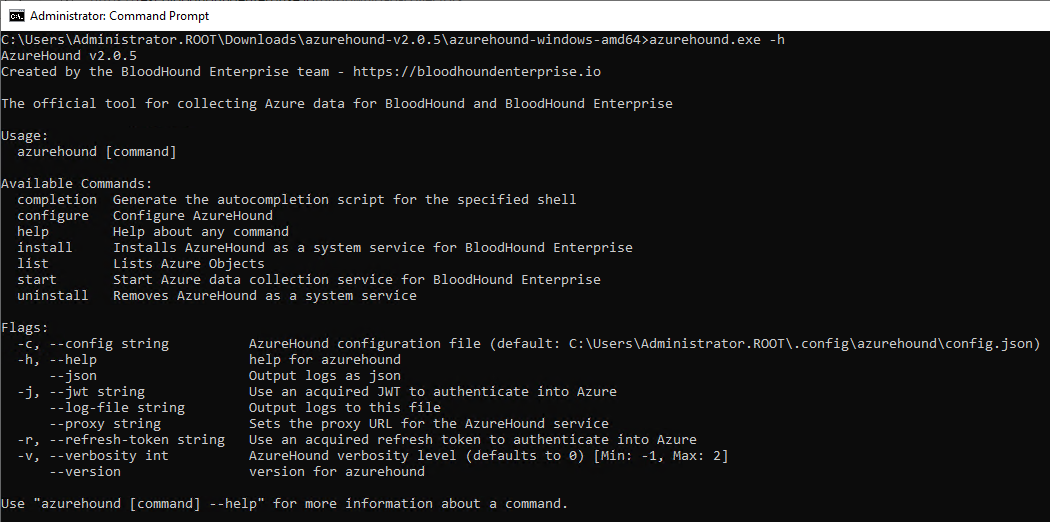
 5. Run "azurehound.exe -h" to see all available options
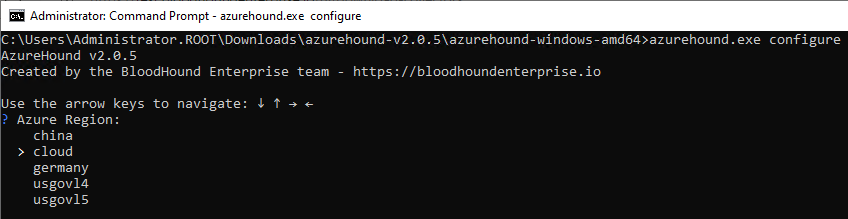
 6. Run "azurehound.exe configure" and select the Azure region your organization's tenant is hosted in
* Note: Most organizations are using the "cloud" region
6. Run "azurehound.exe configure" and select the Azure region your organization's tenant is hosted in
* Note: Most organizations are using the "cloud" region
 7. Type in your Azure tenant ID
 8. Type in the application ID you saved when creating the AzureHound application
 9. Choose your desired authentication mechanism
* We **highly** recommend certificate-based authentication.
9. Choose your desired authentication mechanism
* We **highly** recommend certificate-based authentication.
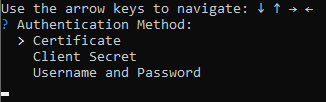 10. If using Certificate authentication: hit Enter, or type 'y', to create a new certificate and key
 * *Note*: The certificate generated by AzureHound expires after one year.
* *Note*: If using a certificate issued by another authority, AzureHound supports certificates with the following:
* PEM encoded
* RSA 256
* PKCS#8 or PKCS#5
11. If using Certificate authentication: if desired, provide a password for the secret key
* *Note*: The certificate generated by AzureHound expires after one year.
* *Note*: If using a certificate issued by another authority, AzureHound supports certificates with the following:
* PEM encoded
* RSA 256
* PKCS#8 or PKCS#5
11. If using Certificate authentication: if desired, provide a password for the secret key
 12. Hit Enter, or type 'y', to set up a connection to BloodHound Enterprise
 13. Type in the full URL of your BloodHound Enterprise tenant
 14. Create an AzureHound collector client by following [Create a BloodHound Enterprise collector client](/collect-data/enterprise-collection/create-collector). Continue to the next step when you have the **Token ID** and **Token**.
15. Type in the client collector's **Token ID** from the previous step
14. Create an AzureHound collector client by following [Create a BloodHound Enterprise collector client](/collect-data/enterprise-collection/create-collector). Continue to the next step when you have the **Token ID** and **Token**.
15. Type in the client collector's **Token ID** from the previous step
 16. Type in the client collector's **Token** key from the collector client
 17. Decide if you want to use a proxy URL. Most organizations will not use this feature
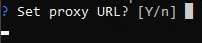 18. Hit Enter, or type 'y', to set up local logging
 19. Select the logging verbosity, as a start we recommend **Default**
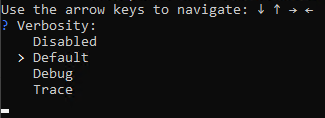 20. Type a log file name
* You can also enter file name as a full path. If not specifying a path; AzureHound will output logs to the specified file name within the same directory as the AzureHound binary
20. Type a log file name
* You can also enter file name as a full path. If not specifying a path; AzureHound will output logs to the specified file name within the same directory as the AzureHound binary
 21. Decide if AzureHound should generate JSON-structured logs
 22. When completed, a settings summary is shown
23. If using Certificate authentication; the summary also includes the location of the certificate to complete the configuration within Azure
22. When completed, a settings summary is shown
23. If using Certificate authentication; the summary also includes the location of the certificate to complete the configuration within Azure
 24. Continue to [Run and Upgrade AzureHound (Windows, Docker, or Kubernetes)](/install-data-collector/install-azurehound/installation-options)